
Capability
Screen recording on your Mac
Rooster records a whole display or a single window using ScreenCaptureKit, with Mac audio and your microphone written into the same file. You pick a landscape, portrait or square canvas at 720p, 1080p or 4K. The finished take joins the project you have open, or becomes a new one, and is transcribed on your Mac.
How Rooster records a screen
The recorder opens as a small floating panel in the corner rather than a sheet over the middle of the screen, because a sheet covers the thing you are composing - and it covers the system dialogs that screen capture itself raises. Two buttons decide what it records - screen sharing, and the camera - so a take is Camera, Screen, Screen + Camera, which floats your camera in a window over the display while you record, or Audio only. Turning screen sharing on from the editor's recorder brings up the panel, and turning it off takes you back.
Three chips along the bottom choose the sources: a camera, a microphone, and the screen source - the entire display, or one application window picked from a list with a refresh beside it. Rooster's own windows are kept out of the capture, so the recorder panel never turns up in the file.
Capture runs through ScreenCaptureKit and writes H.264 into a QuickTime movie (.mov), the kind of file QuickTime Player makes. The frame is cropped to the canvas you chose and sized from the quality you chose, and the audio track carries Mac audio and your microphone together at 48 kHz. A countdown of three, five or ten seconds is available, or none at all, and the elapsed time sits beside an orange dot while the take runs. Controls that would change the capture are locked while it does.
The file is written to a Rooster folder inside Downloads unless you choose somewhere else, named for the date and time of the take. It then becomes a project, and unless you have turned that off in the recorder's settings, transcription starts straight away, so the recording is on its way to being editable as text without a second step.
What is on screen
Screen, camera, or both
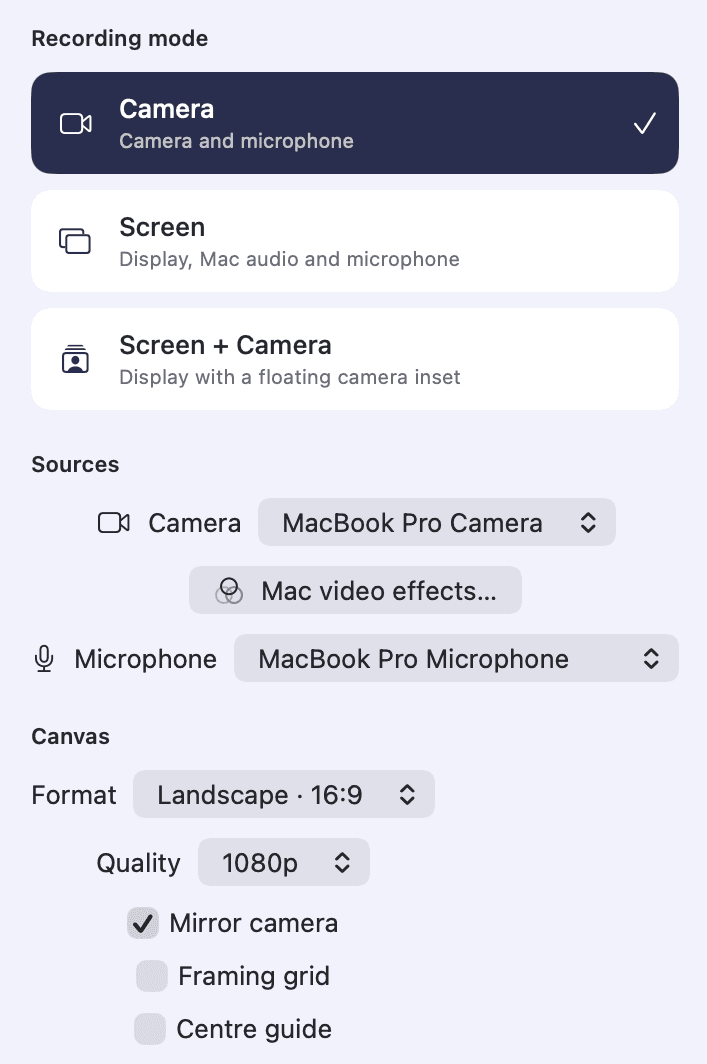
Camera records the camera and the microphone. Screen records a display with Mac audio and your microphone. Screen + Camera adds a floating camera inset over the display capture, with a mirror toggle for the camera picture.
A display or one window
The screen chip lists every display and every shareable application window, and refreshes the window list on demand. In Screen + Camera, a window capture keeps you in the corner as a camera layer of its own, just as a display capture does.
Mac audio and your microphone
Both go into the same file. Record Mac audio is a toggle in the recorder's settings and the microphone is whichever one the source chip names. Rooster's own audio is excluded, so the take does not record itself.
Canvas and quality
Landscape 16:9, portrait 9:16 or square 1:1, at 720p, 1080p or 4K. The screen is cropped to that shape as it is captured, so a vertical take is framed while you record rather than cropped afterwards.
Countdown and pointer
A countdown of three, five or ten seconds, or none, drawn over the preview as it runs. Show pointer decides whether the cursor is in the recording at all.
A teleprompter in the recorder's top bar
It opens in its own window, scrolls a script while you record, and can be shown in the recording or kept out of it. It is kept out by default.
Where it saves
A Rooster folder inside Downloads, with a Choose button for anywhere else, and a filename carrying the date and time of the take.
Every capability Rooster ships is listed on the features page, and how the work is split between your Mac and everything else is on how it works.
How to use it
Record your screen, with or without your camera
Record a whole display or one app's window in Rooster, with your Mac's sound and your microphone, and add your camera in a window you can move.
What it does not do
- Screen capture runs at up to 30 frames a second.
- There is no cursor zoom, no click highlighting, no automatic panning and no on-screen annotation. The pointer is recorded as it is, or hidden.
- The framing grid and the centre guide are Camera-mode controls. They draw over the camera picture, so the screen modes do not offer them.
- Nothing is uploaded. There is no hosting, no share link and no viewer analytics - a recording is a file on your Mac, and sending it to somebody is your job.
- Rooster is a Mac application for Apple silicon. There is no Windows, iPad or browser version, and none is planned.
This list is here because the alternative is a reader installing Rooster and finding out. If one of these is the job you need done, the alternatives page ranks tools that do it.
Frequently asked questions
Does Rooster record system audio and my microphone at the same time?
Yes. A screen recording carries both into one file: Record Mac audio is a toggle in the recorder's settings, and the microphone is whichever one the source chip names. Rooster's own audio is excluded from the Mac audio track, so the take does not record itself.
Can Rooster record a single application window?
Yes. The screen chip lists shareable application windows alongside the displays, with a refresh for windows opened since the list was built. In Screen + Camera the camera is recorded as a layer of its own either way, so a window capture keeps you in the corner too.
Where do screen recordings go?
To a Rooster folder inside your Downloads folder, unless you pick another folder in the recorder's settings. Each file is named for the date and time of the take.
What resolution and shape does it record?
720p, 1080p or 4K, in landscape 16:9, portrait 9:16 or square 1:1. The screen is cropped to the shape you picked as it is captured, rather than afterwards.
Does the recording go to a server?
No. Capturing, writing the file and transcribing it all happen on your Mac. Rooster can make three network connections by design - downloading a transcription model, an OpenAI-compatible transcription service you configure yourself, and generated B-roll through your own fal.ai key - and none of them is part of recording a screen.
The rest of the loop
Transcription that runs on your Mac
Parakeet or whisper.cpp running in Rooster's own process, with the word timings the rest of the editor is built on.
Captions from your own transcript
Four presets over the transcript's own timings, adjustable down to the outline, burned into the export and written as SRT and VTT.
Removing filler words
Every hesitation in the transcript, played in context, cut as one undoable step when you approve it.
Studio Sound
DeepFilterNet 3 on your Mac, with a strength control and A/B playback before anything is kept.
Eye Contact
A restrained, on-device gaze correction with three strengths and A/B playback. Beta, and labelled so in the app.
The teleprompter in Rooster's recorder
A script window opened from the recorder that scrolls continuously, keeps the script with the project, and has mirror and flip settings for a beam splitter.